Besides the standard characters, you can also use your own original character design (Standard plan and above). From "Character" in the admin dashboard, just upload a ZIP of transparent PNG parts and you can preview and apply it. If you're commissioning an illustrator, you can hand them this page's specification as-is.
Rather than a single image, the character is shown by layering three transparent PNGs — "face (base)," "eyes," and "mouth." Motion is done purely by swapping images (there's no smooth morphing). While speaking, the mouth cycles quickly through the "a/i/u/e/o" mouth shapes plus the mouth matching the current expression; the eye/mouth combination changes with the mood of the AI's reply; and every few seconds the eyes briefly switch to the "closed" image to blink.
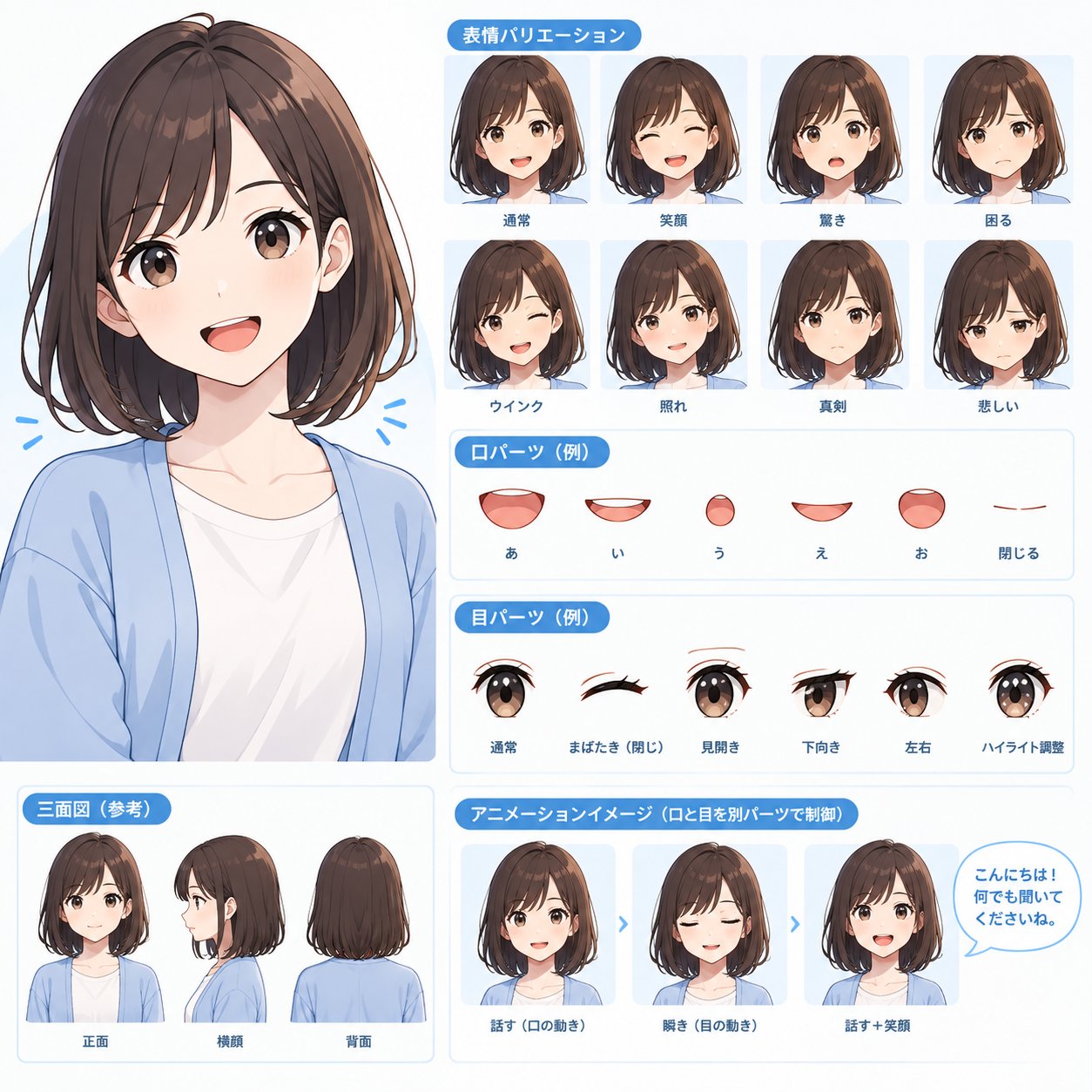
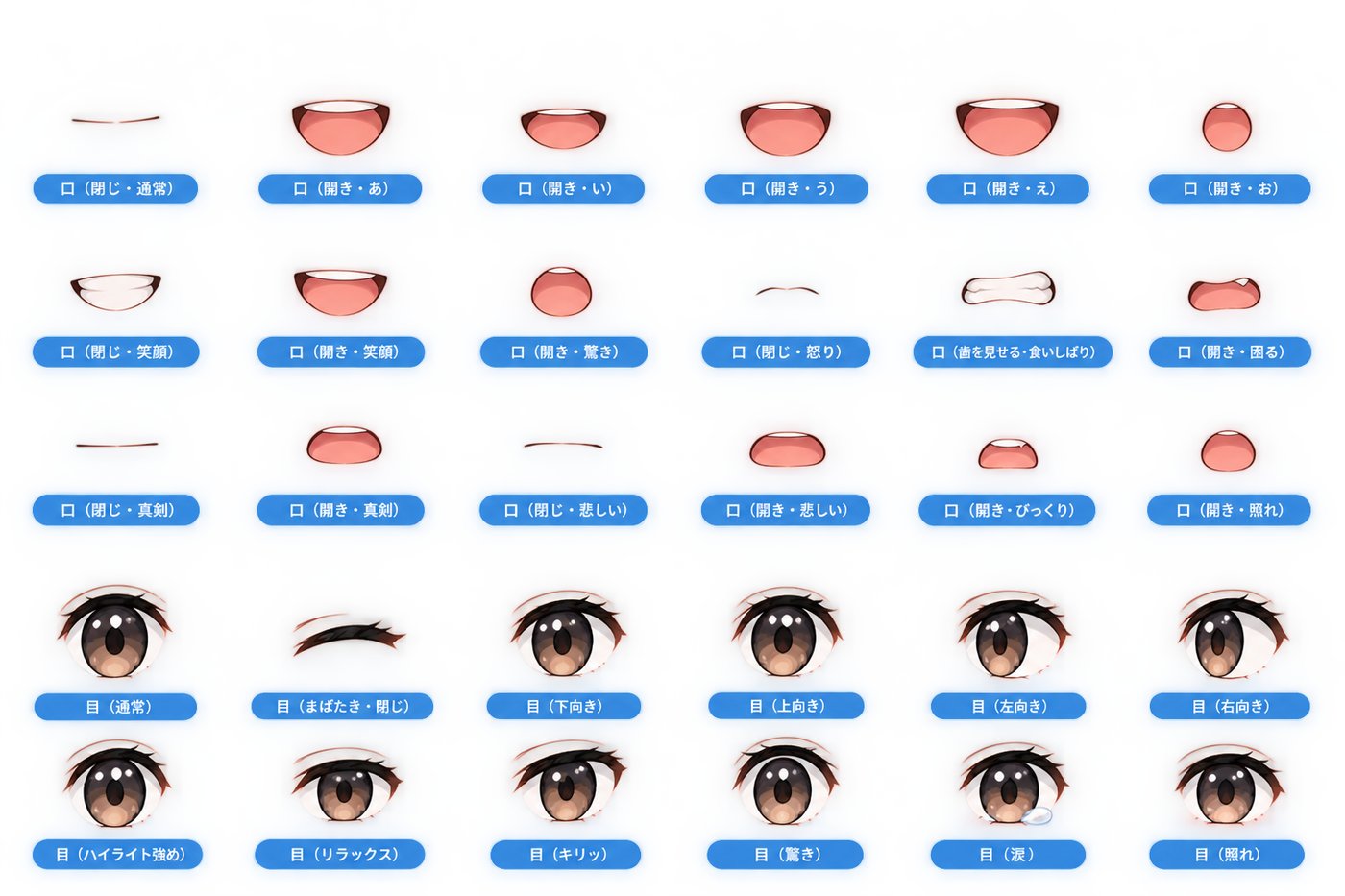
Sharing the reference images below with your illustrator can help convey the idea of the expression and mouth/eye variations (these are AI-generated references). For the actual delivery, please provide individual transparent PNGs split by part, not a single sheet like this.
| Format | PNG with a transparent background (alpha channel) |
|---|---|
| Size | 400×455px wide/tall (up to 800×910px at the same ratio). Every file must be the same size. 1MB max per file, 12MB max for the whole ZIP. |
| Number of files | 20 required files (listed below) |
| Alignment | Export every file on the same canvas, in the same position as the face base. For the eye/mouth parts, keep everything outside the part transparent and export at the same size as the base (don't crop the part down to its own bounds). |
| Stacking order | base → eye → mouth |
| Eyebrows / blush | Include these in the "eye" parts (needed for the troubled, surprised, and shy expressions). Don't include eyes, mouth, eyebrows, or blush in the face base. |
| File name | Contents |
|---|---|
base.png | Hair, outline, body, etc. — everything except the eyes, mouth, eyebrows, and blush. The eyes and mouth are layered on top of this. |
While speaking, these mouth shapes are cycled quickly to create a talking motion.
| File name | Contents |
|---|---|
mouth_a.png | "a" mouth shape |
mouth_i.png | "i" mouth shape |
mouth_u.png | "u" mouth shape |
mouth_e.png | "e" mouth shape |
mouth_o.png | "o" mouth shape |
| File name | Contents |
|---|---|
mouth_neutral.png | Neutral — idle mouth when not speaking (slightly closed) |
mouth_smile.png | Smiling |
mouth_closed.png | Closed — fully closed mouth (used between words while speaking) |
mouth_troubled.png | Troubled |
mouth_surprised.png | Surprised |
mouth_shy.png | Shy |
mouth_sad.png | Sad |
| File name | Contents |
|---|---|
eye_neutral.png | Neutral (default state) |
eye_smile.png | Smiling |
eye_closed.png | Closed (used for blinking) |
eye_troubled.png | Troubled (includes eyebrows) |
eye_surprised.png | Surprised (includes eyebrows) |
eye_shy.png | Shy (includes blush) |
eye_sad.png | Sad (includes eyebrows) |
The AI picks one of 6 moods for each reply — neutral, smile, troubled, surprised, shy, and sad — each with its matching eye and mouth switching together. ("Closed" isn't used as a mood; it's only for blinking and for the mouth between words.)